Forgot Password
Enter your School Email to receive a reset link.
Don't know the school email, or can't open that mailbox? Get the username and a reset link sent to the parent
Back to Pupil login · Back to Parent login
How to reset your password — in pictures
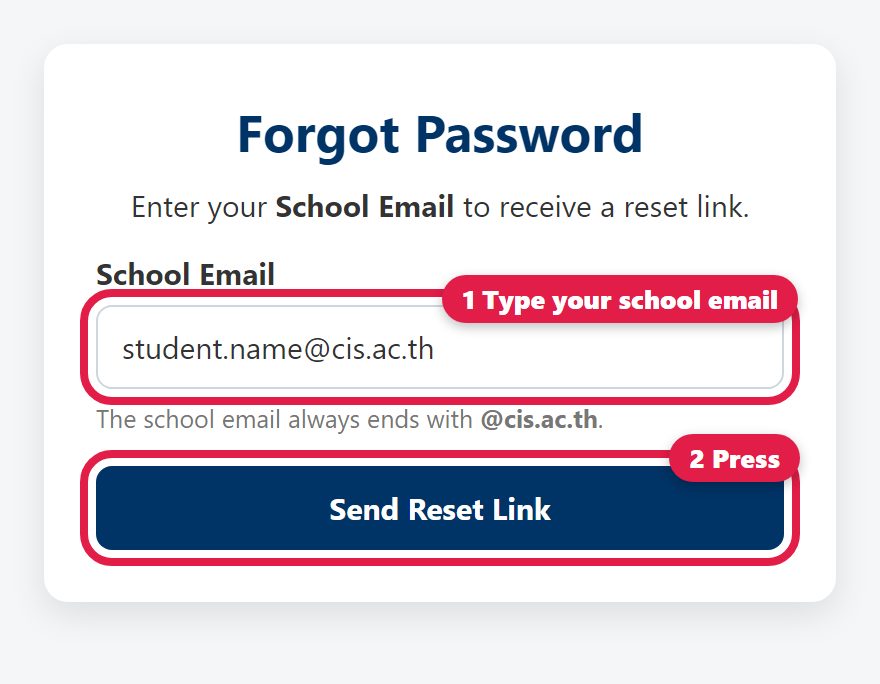
1
Type your school email (ends with @cis.ac.th) and press Send Reset Link.
2
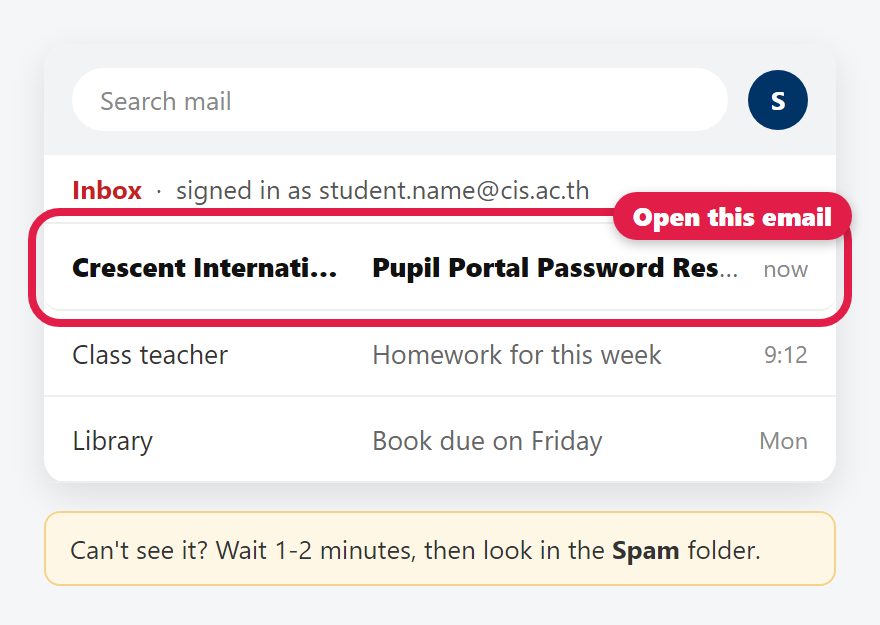
Open your school email (Gmail, signed in with the same @cis.ac.th address) and open the email "Pupil Portal Password Reset". Not there after 2 minutes? Look in Spam.
3
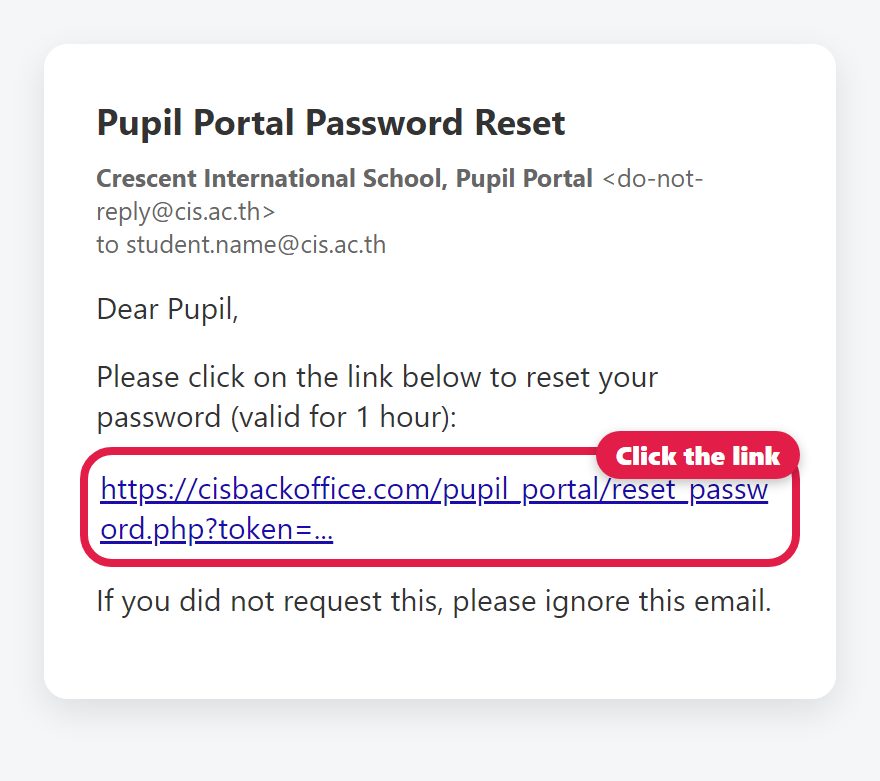
Click the link in the email. It works for 1 hour — if it has expired, start again from step 1.
4
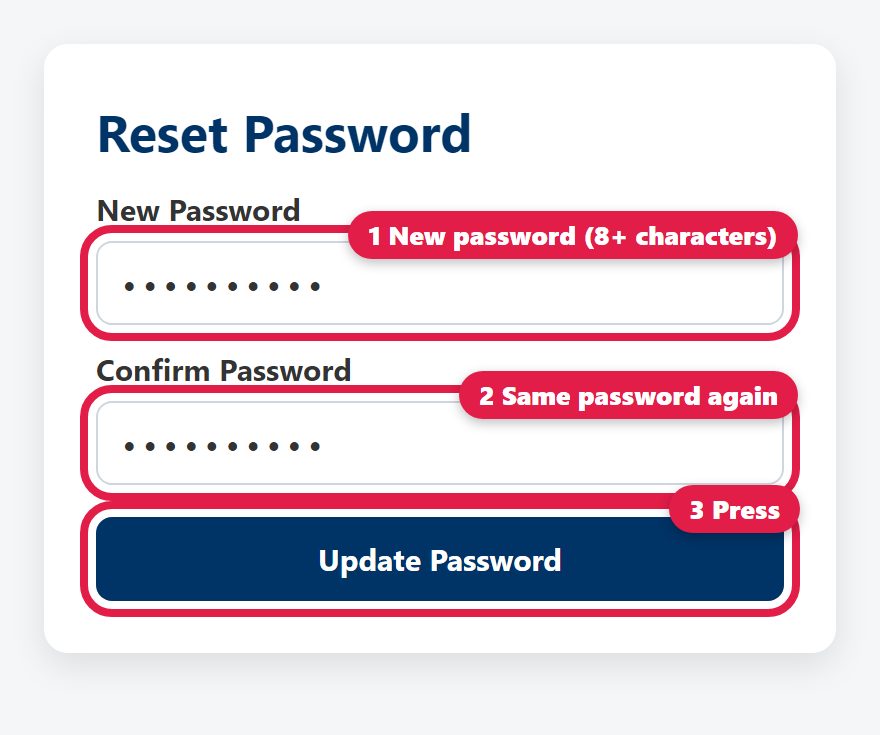
Type a new password twice (at least 8 characters) and press Update Password.
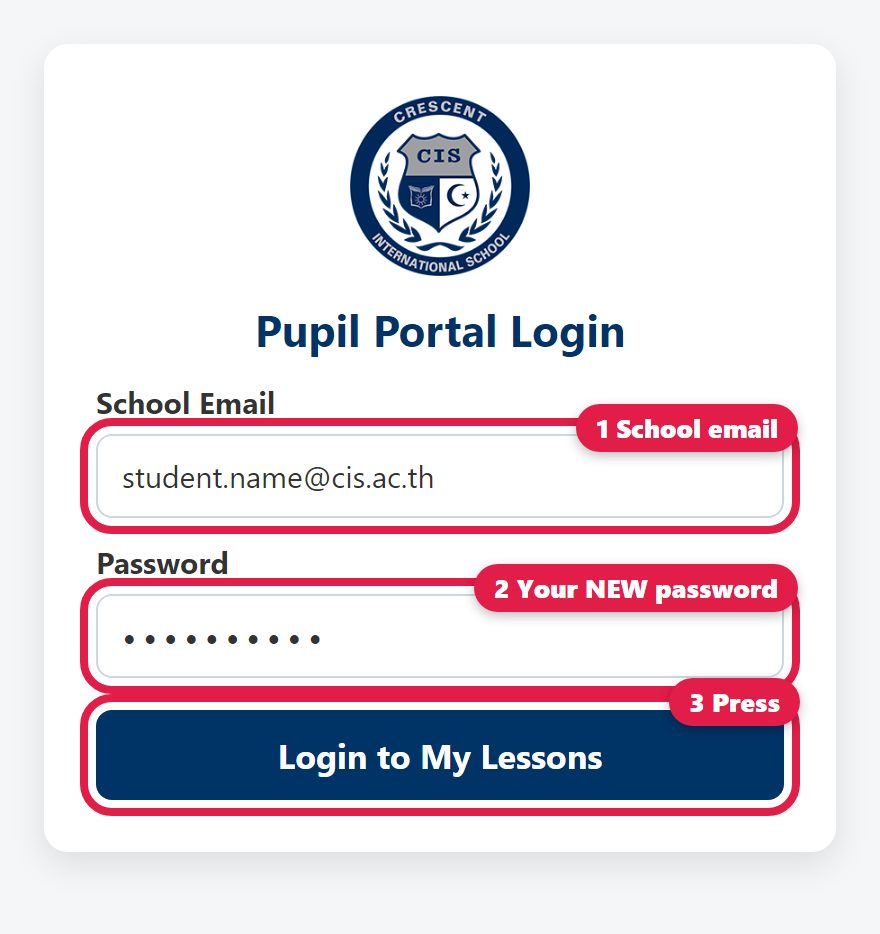
5
Log in with your school email and your new password.